HOMER Knowledge Base
Create a quote for purchasing
This article explains how to create and print a quote for the purchase of HOMER 2 at the HOMER users website, users.homerenergy.com. Most of the process for creating a quote is the same for placing an order. Note: For compatibility with the HOMER website, we strongly recommend using either the Firefox or Chrome browser.
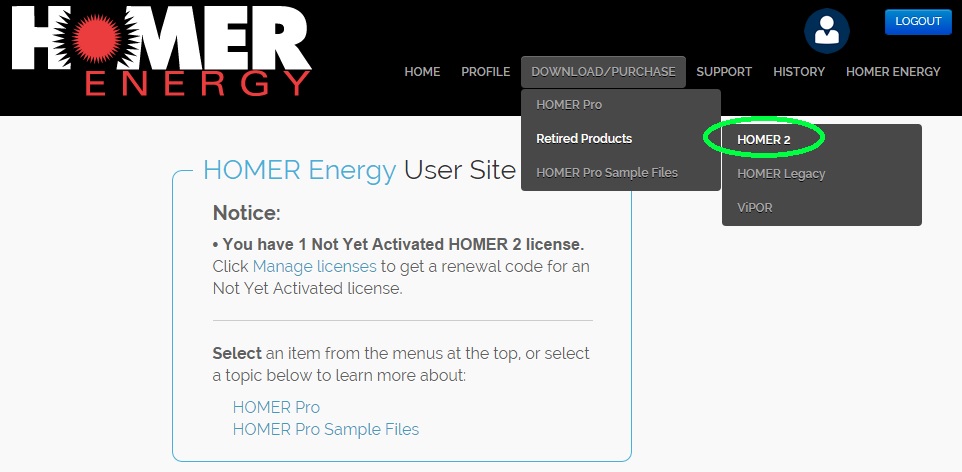
Step 1 - Sign in to your HOMER account at users.homerenergy.com, and you will be taken to the home page. Go to the HOMER 2 product page by clicking the HOMER 2 link on the left side of the page. Note: If you do not have a user account, please refer to Knowledgebase Article 10495 for instructions for creating a new user account.
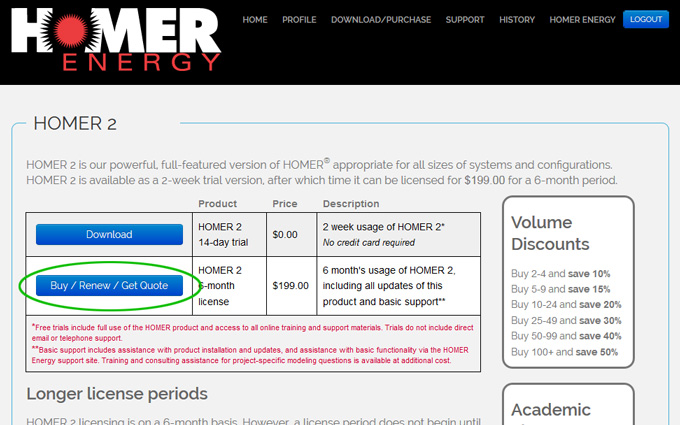
Step 2 - On the HOMER 2 product page, click the Buy/Renew/Get Quote button to go to the Order page.
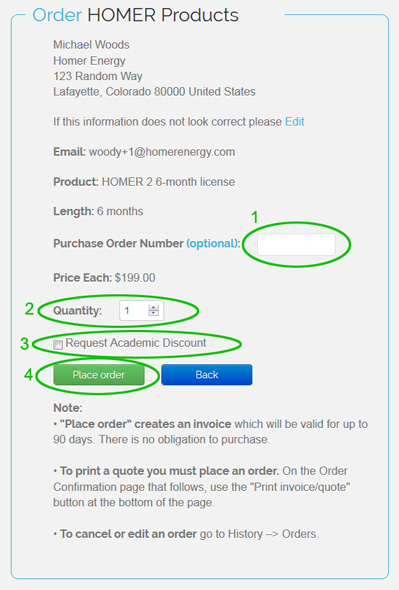
Step 3 - On the Order HOMER Products page: (1) Enter your company's optional purchase order number, if any; (2) Enter the quantity; (3) If you are affiliated with an educational institution, you may request an Academic Discount which requires that you provide proof of your academic association (Steps for providing proof of academic affiliation will be covered in a future Knowledgebase article); (4) Click the Place order button.
Your order will be valid for up to 90 days, and there is no obligation to purchase. You can cancel or pay for your order at any time.
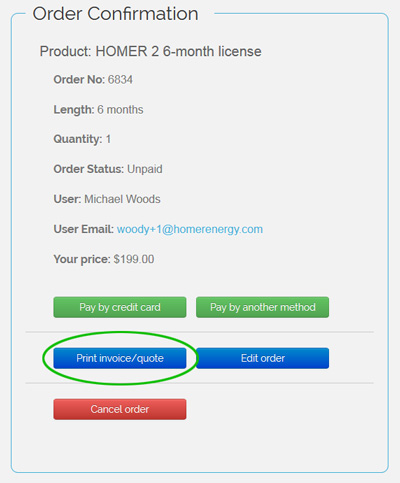
Step 4 - On the Order Confirmation page, review your order details. If correct, click on the Print invoice/quote button.
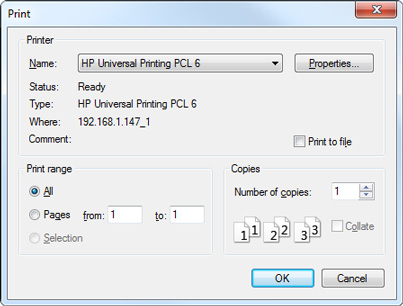
Step 5 - Your browser's print dialog will appear, similar to the example below. Set the printer name and other options, then print your quote.